Free · Open source · MIT licensed
Click. Captured. Done.
So private it works with Wi-Fi off.
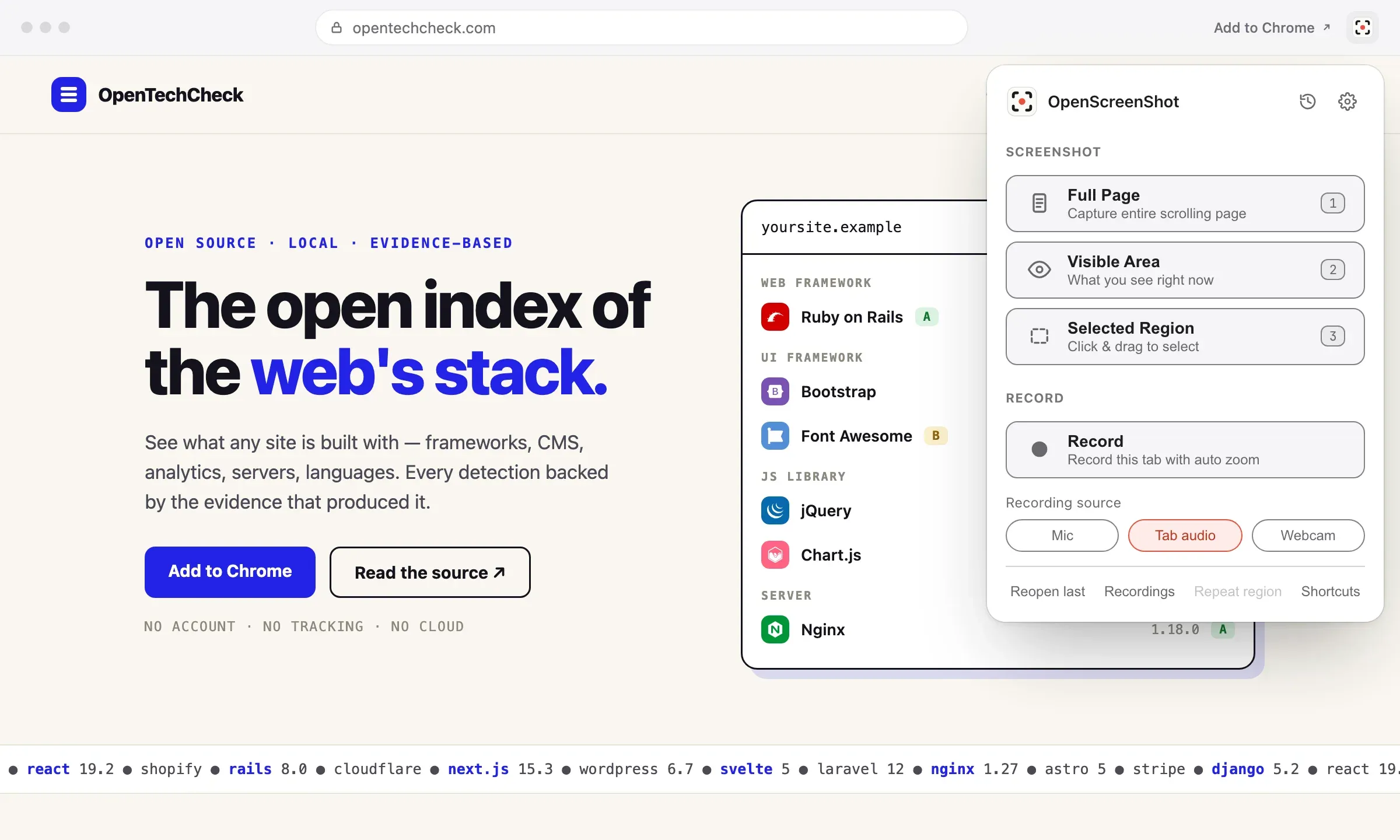
Full page screenshot in one click. No account, no watermark, no cloud.
# One screenshot, straight from your terminal
$ npx openscreenshot shot https://example.com --out shot.png --full
Saved shot.png · full page · 1440×3120
# Or an MCP server for your AI agent
$ npx openscreenshot serve
MCP server ready · tool: capture_screenshot
# Any MCP client config
{ "command": "npx", "args": ["openscreenshot", "serve"] }
The site in these screenshots is OpenTechCheck, also by us — see what any website is built with. Try it now
- 1k users on the Chrome Web Store
- 68 stars on GitHub
- MIT licensed
- Works offline
-
Capture anything
Click the icon. Get the whole page. Or the visible area, or a region you drag — from the right-click menu or a shortcut.
-
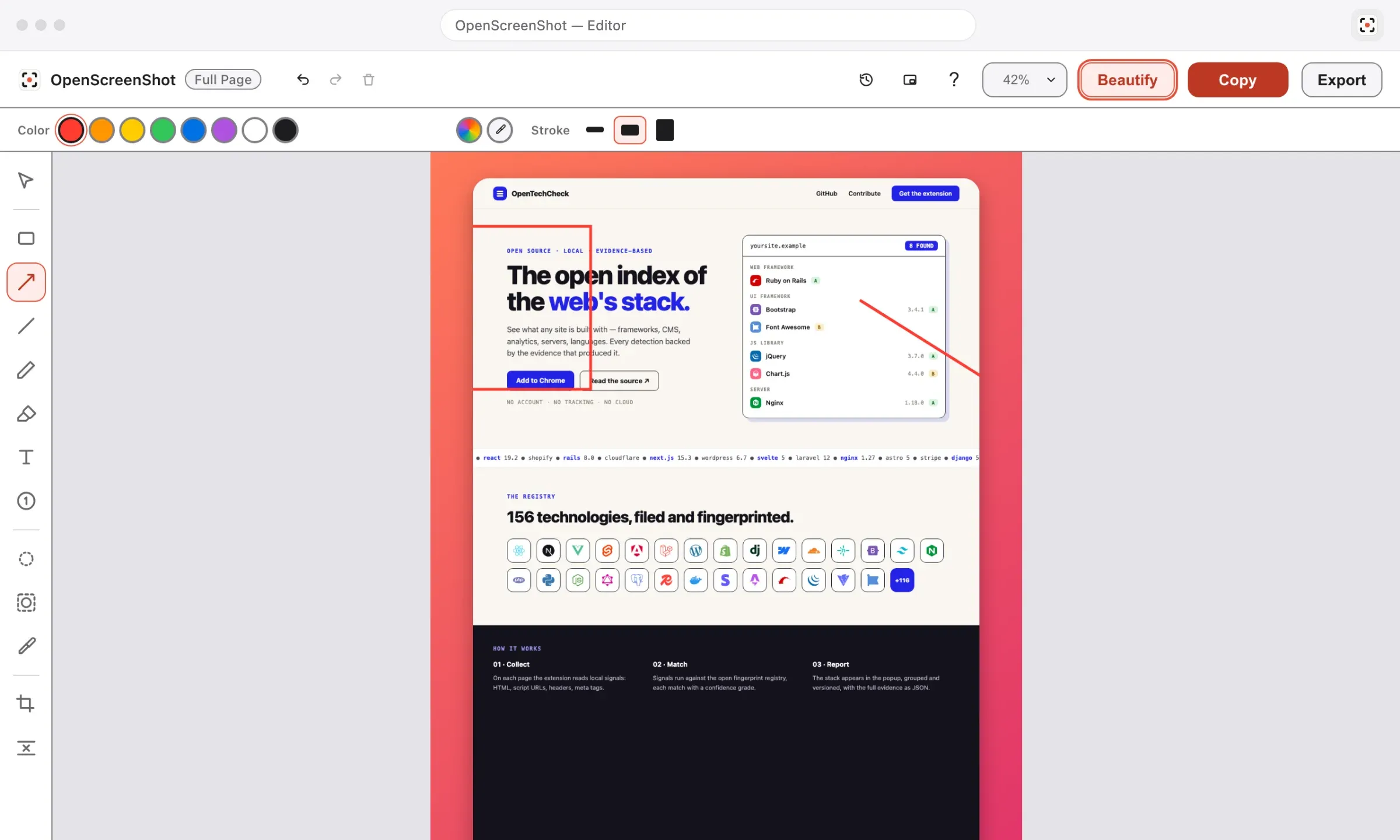
Edit before you share
Arrows, boxes and text to make your point. Blur for the parts nobody else should see.
-
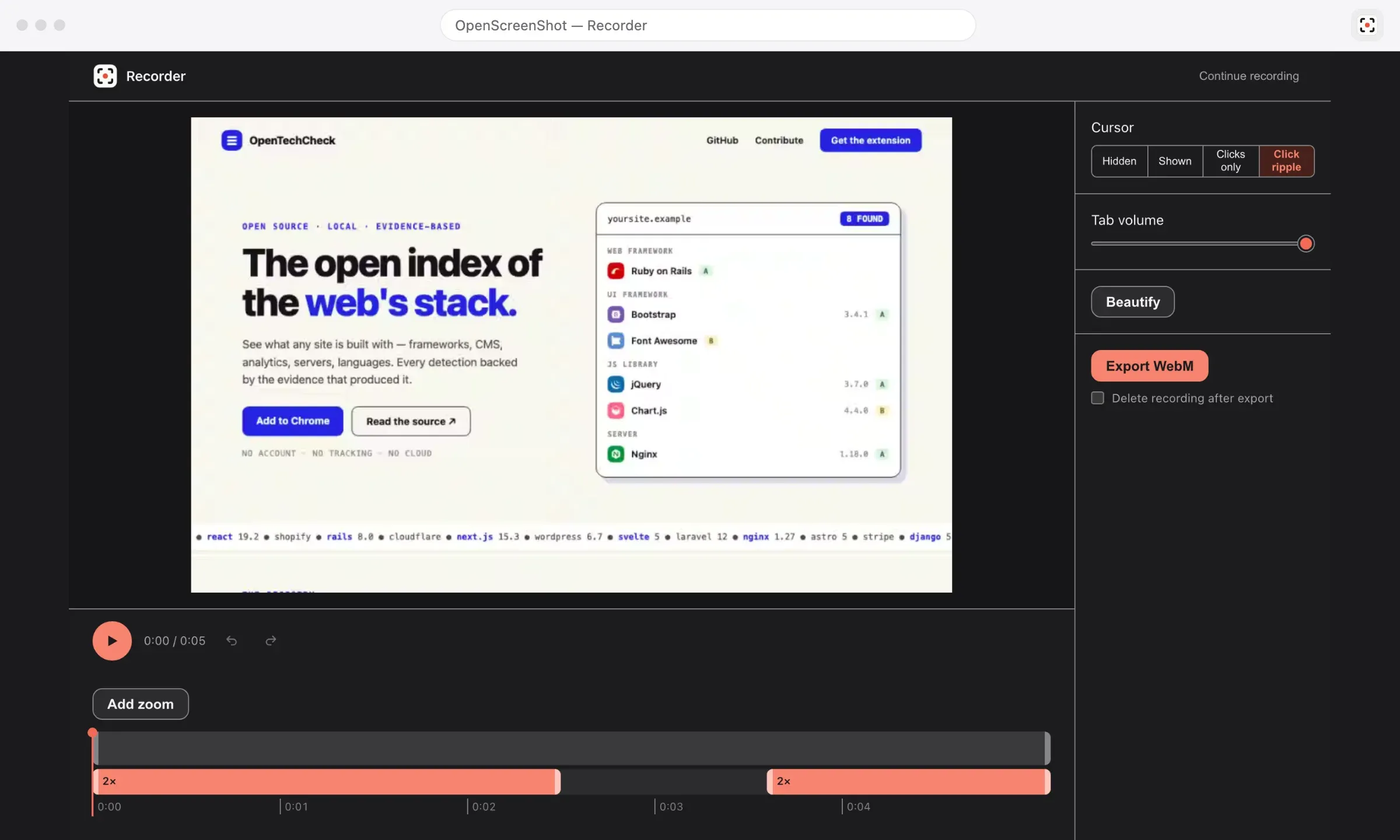
Record the tab
One click records, with auto zoom at every click. Trim on a timeline, then export WebM.
-
Private by default
No account, no upload, no telemetry. It works with your Wi-Fi off.
Privacy
Nobody can see what you capture. Not even us.
Screenshots are often the most sensitive images on your machine. Capture, editing, export, PDF and recording all run in your browser. The extension makes no network request of its own, and it has no standing access to any site you visit.
- Account
- None
- Upload
- None
- Telemetry
- None
- Watermark
- None
- Host permissions at install
- None
- License
- MIT
What it asks for at install
| Permission | Why it is needed |
|---|---|
activeTab
|
Capture the tab you are looking at, when you click the toolbar button, press a keyboard shortcut, or pick a capture from the right-click menu. Access is granted for that one tab, for that one capture. |
scripting
|
Inject small, self-contained functions into the captured tab: measure the page height and scroll it during a full-page capture, draw the drag-to-select overlay for a region capture, and write an image to the clipboard in quick mode. Every script ships inside the package. No remote code is loaded. |
storage and unlimitedStorage
|
Keep your settings on the device, hold the capture the editor page loads, remember the last region rectangle so it can be repeated, and save an in-progress editing draft so a closed or crashed tab does not lose your annotations. A full-page screenshot can exceed the default storage quota, which is what unlimitedStorage raises. |
downloads
|
Save an export from the editor, or a quick-mode capture, to your downloads folder. The extension never reads, searches, or opens your download history. |
contextMenus
|
Add one OpenScreenShot submenu to the page right-click menu, as a second way to start a capture. The extension reads only which menu item you clicked. |
clipboardWrite
|
Copy a screenshot to your clipboard, from the editor’s Copy button or from quick mode. The extension only ever writes the screenshot you just captured or exported. It never reads what is already on your clipboard. |
offscreen
|
Run the screen-recording engine in a hidden document. MediaRecorder capture and the crash-safe IndexedDB chunk writes need a page context a service worker does not have. Always present; it adds no install-time warning. |
What recording adds, only when you record
| Permission | Why it is needed | When it is requested |
|---|---|---|
tabCapture
|
Captures the current tab’s video, and its audio if you enable the tab-audio track, for recording. | Once, the first time you click Record — a single Chrome permission prompt. |
<all_urls>
|
The optional host permission. It keeps the in-page cursor overlay and control bar alive when a recording’s tab navigates to a different origin. | Only if you turn on “Record across sites” in settings. |
The microphone and camera, when you enable them, are opened by your browser’s own permission prompt. The stream never leaves your device.
The same tables, with the full policy, on the Privacy page.
How it compares: OpenScreenShot vs GoFullPage vs FullPage Capture.
Agents & CLI
Scriptable from your terminal. Still local.
openscreenshot on npm
- A separate, optional tool for scripts and AI agents
- Drives the Chrome already on your machine
- No browser download, no hosted service
- Also an MCP server, with a
capture_screenshottool
One screenshot
npx openscreenshot shot https://example.com --out shot.png --fullMCP client config
{ "command": "npx", "args": ["openscreenshot", "serve"] }FAQ
Questions, answered.
Is my data sent to a server?
No. Zero data leaves your device. All capture, annotation, and export processing runs locally in your browser. The extension has no analytics, no telemetry, and no third-party services. See the Privacy Policy for details.
Does it work on chrome:// and extension pages?
No. Chrome blocks extensions from capturing chrome://, chrome-extension://, the Chrome Web Store, and about: pages. That block is a Chrome security rule, and no extension can lift it. The extension shows an error if you try.
Why does full-page capture take a few seconds?
Chrome limits captureVisibleTab to about 2 calls per second. Every viewport-height tile costs one call, plus a short pause for the page to repaint. A typical 10-tile page takes 5–6 seconds, and a longer page takes proportionally longer. The progress bar in the popup tells you where it is.
Can I skip the editor and copy or save a screenshot straight away?
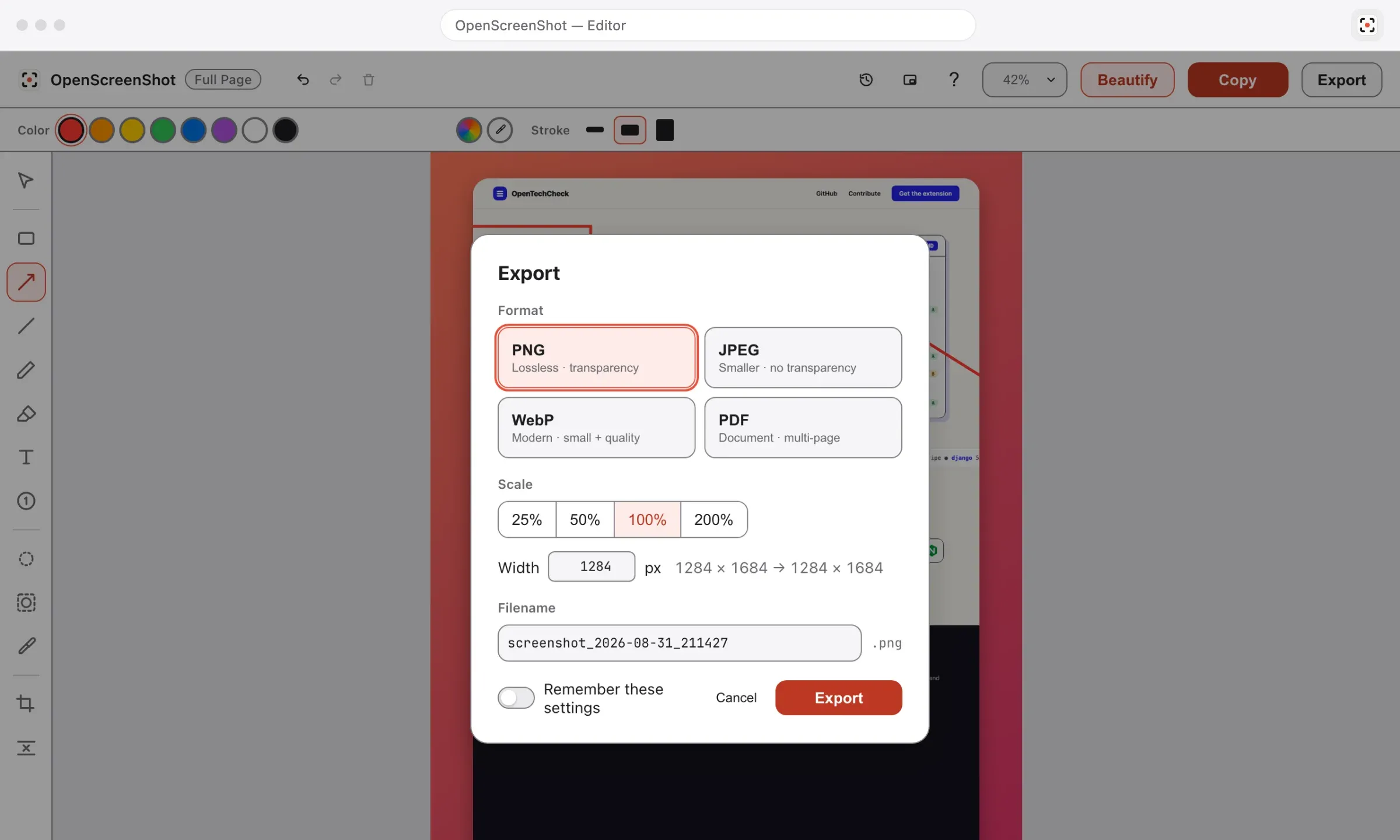
Yes. The After capture row in the popup picks Editor, Clipboard, or Download. The setting applies to every entry point — the popup buttons, the keyboard shortcuts, and the right-click menu. Quick saves are written as PNG, and the toolbar badge is the confirmation since no tab opens.
Does PDF export bundle a heavy library?
No. PDF export runs on a small writer built into the extension (src/editor/pdf-writer.ts). It places each page’s image and compresses it with the browser’s own CompressionStream, so exporting a PDF makes no network request and adds no third-party code. Earlier versions used jsPDF, which pulled in html2canvas and dompurify for a feature the extension never called.
Can I change the keyboard shortcuts?
Yes. Open chrome://extensions/shortcuts, or use the Shortcuts link in the popup footer. The defaults are Ctrl+Shift+S for the full page, Alt+Shift+V for the visible area, and Ctrl+Shift+E for a region; on macOS they are ⌘⇧S, ⌘⇧V, and ⌘⇧E. Chrome may leave a command unbound if another extension already claims the combination.
Why does Chrome ask for tab capture access?
tabCapture is an optional permission, not one the extension asks for at install. Chrome shows the prompt once, the first time you click Record; every recording after that starts in one click, with no further prompt. Declaring it optional means it carries no install-time warning and never appears unless you actually start a recording.
Where are my recordings stored?
On your device, and nowhere else. Video chunks, the cursor log, and any mic or tab audio are written to IndexedDB as you record, in 1-second pieces, so a crash or a killed background page never loses the take. They stay there until you export or delete the session — nothing is ever uploaded.
Every question, plus the known limits, on the Support page.
Ready in ten seconds.
-
Add it to Chrome
One click on the Chrome Web Store. Free, and no sign-up.
-
Click the icon
Or press the shortcut. Pick full page, visible area, or a region.
-
Capture
Annotate, export, or copy. It never leaves your machine.
Works on Chrome, Edge, Brave, Arc and other Chromium browsers.